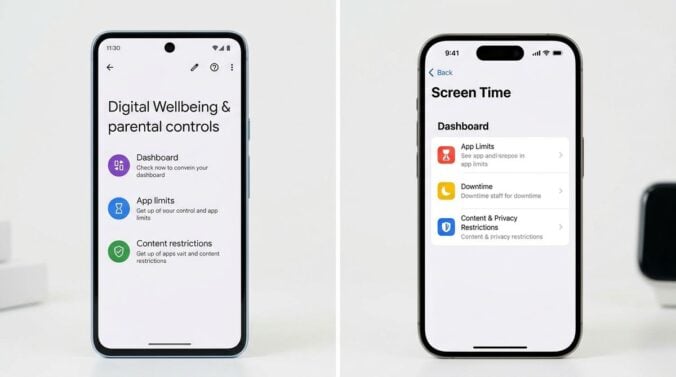
A modern phone can ring, buzz, flash and chime dozens of times in a single hour. Some of those signals matter a great deal, such as a message from a child’s school or a delivery that needs signing for. Many more are promotions, game reminders, duplicate alerts or automatic updates that nobody asked for. The cumulative effect can be exhausting. People often feel they are always on call, even during dinner or while trying to sleep. This article explains how to sort notifications by purpose so that your phone supports your attention instead of constantly interrupting it.
Notice what interrupts you most
Begin by observing your own habits for a few days. Notice which alerts make you reach for the phone without thinking. Keep a simple note of the apps that appear most often and the times of day when interruptions feel worst. You may discover that a shopping app sends more messages than your family, or that a news app wakes you during the night. Ask someone in your household whether they notice the same pattern, because they may see the interruptions from another angle.
This awareness matters because the solution is not to switch everything off. It is to decide, calmly and deliberately, which interruptions deserve immediate attention and which can wait. Once you understand the pattern, the changes become much easier to make. Treat the exercise as curiosity rather than judgement, because the aim is calm rather than discipline.
Sort alerts by purpose
Divide your notifications into groups. A useful set of categories includes urgent personal messages, time-sensitive practical updates, work requests, social activity and marketing. Urgent personal messages from close family or emergency services should always break through. Marketing alerts are rarely urgent and can usually be turned off entirely. Most of these messages can be unsubscribed from in a few taps, which is often the quickest way to reduce the noise.
Be careful with apps that mix categories. A messaging app may carry both important conversations and group chats that rarely matter. Many phones let you choose which people or groups can trigger an immediate alert, which gives you more control without losing contact with the people who matter most.
Use scheduled quiet times
Most phones offer focus or do-not-disturb settings that silence alerts during chosen hours. Set a quiet period for evenings and another for the first hour of the morning, when you want to read or think without interruption. Allow exceptions for calls from a short list of trusted contacts, so that a genuine emergency still reaches you.
Some people also find it helpful to keep the phone out of the bedroom, or to charge it across the room. A device that is physically distant tends to be less tempting to check. Experiment with what feels calm rather than following a rigid rule that does not suit your life. Tell the people around you when your quiet hours are, so they know you are not ignoring them.
Some people find that calmer notifications change how they feel about the day as a whole. Trade publications and digital wellbeing groups often describe these shifts in general terms, and their guidance is worth reading alongside your own experience. Readers may also want to visit slciconference.com. You can also visit Europe Liberty Reserve for more reading. For a related read on this site, see How to Check a Device Before Connecting It. Over time, a calmer phone helps you choose when to engage, rather than being pulled into every alert the moment it appears. Small adjustments, made once a month, add up.
Review your settings every month
Notification settings drift over time. A new app may be installed, a family group may become busy, or a subscription may start sending weekly emails. Set a monthly reminder, perhaps on the first Sunday, to scroll through your apps and adjust anything that has become noisy. The review takes only a few minutes once it becomes routine. Keep a note of what you changed, so the next review is quicker and you can see which adjustments actually helped.
If an app repeatedly ignores your settings or sends alerts you cannot control, consider removing it or using its web version instead. Be cautious about accepting permission prompts that ask for access to your contacts or location when the app does not need them.
A quick monthly review can follow this pattern:
- Turn off marketing alerts and promotional emails that you never read
- Keep urgent family, school and emergency contacts able to break through
- Set quiet hours for evenings and the early part of the morning
- Group chats may be muted for the times you need focus
- Check permissions for any app that has recently changed its settings